Linux · beta
Beresta for Linux
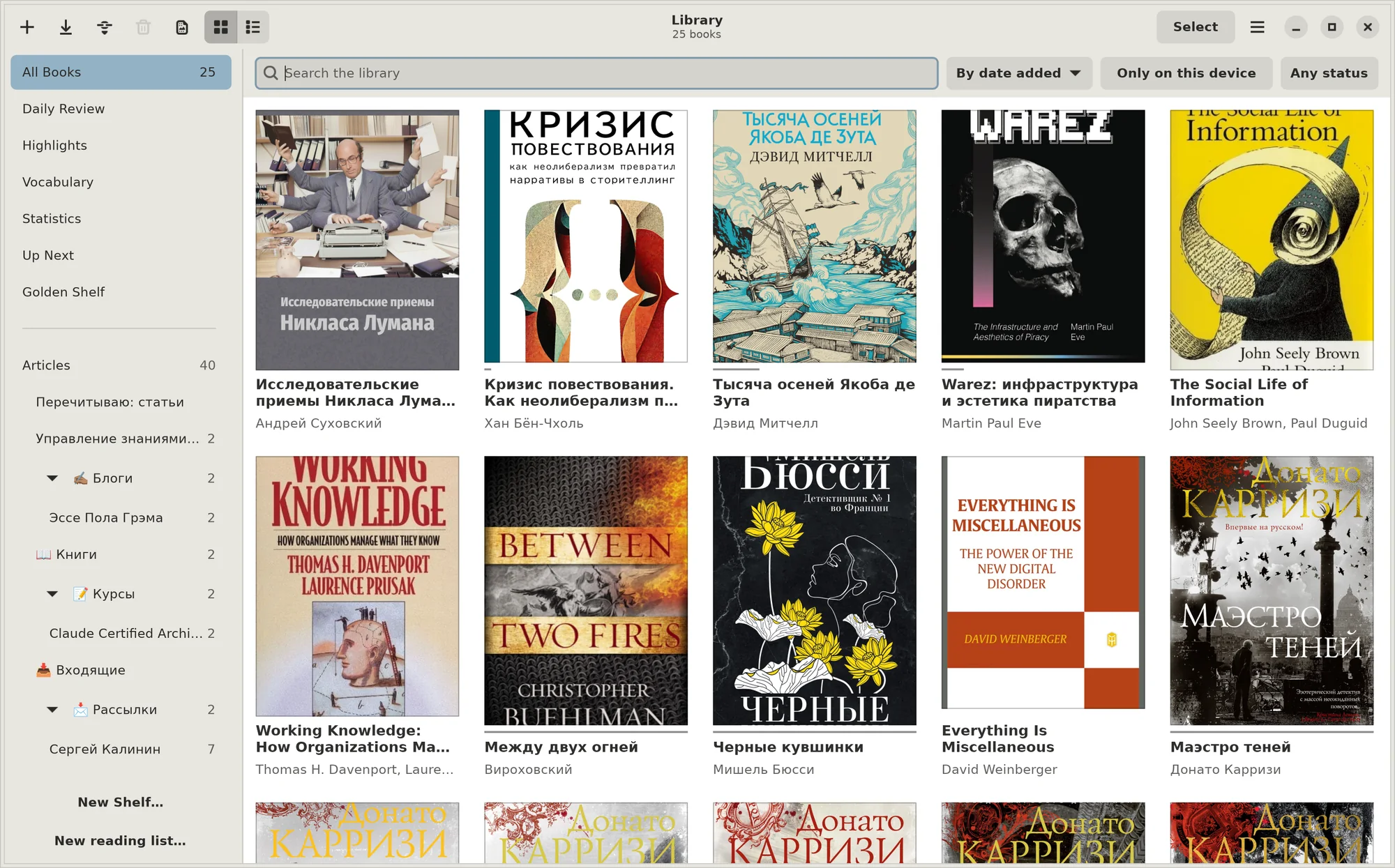
Beresta for Linux is a native app, not a website in a browser. The window is built for Linux, and your books, highlights and sync run on the same core as on the Mac. This is a beta: everything listed below is in the package, but there will be rough edges, and I'd like to hear about them on the forum.
What it is
The window is built with GTK 4 and libadwaita, the way GNOME apps are. The reader is the same engine as on the Mac, running in WebKitGTK. Everything that decides about a book — reading the file, highlights, sync, export — is done by one shared core for the Mac, iPhone, iPad and Linux. So a library started on Linux syncs with a library on the Mac with no conversion in between.
Your library lives on your computer. I have no server where your books and highlights would sit.
What the beta already does
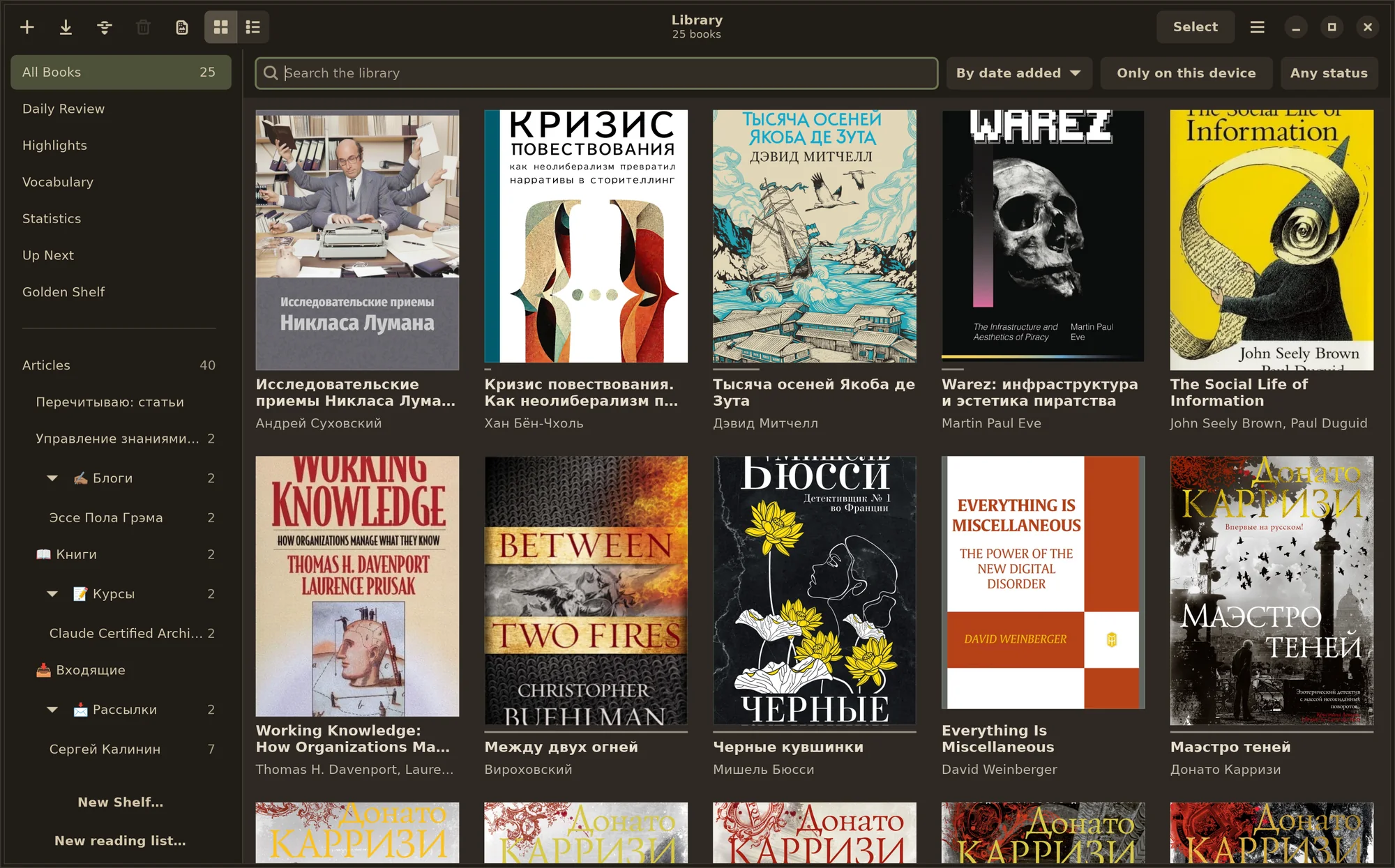
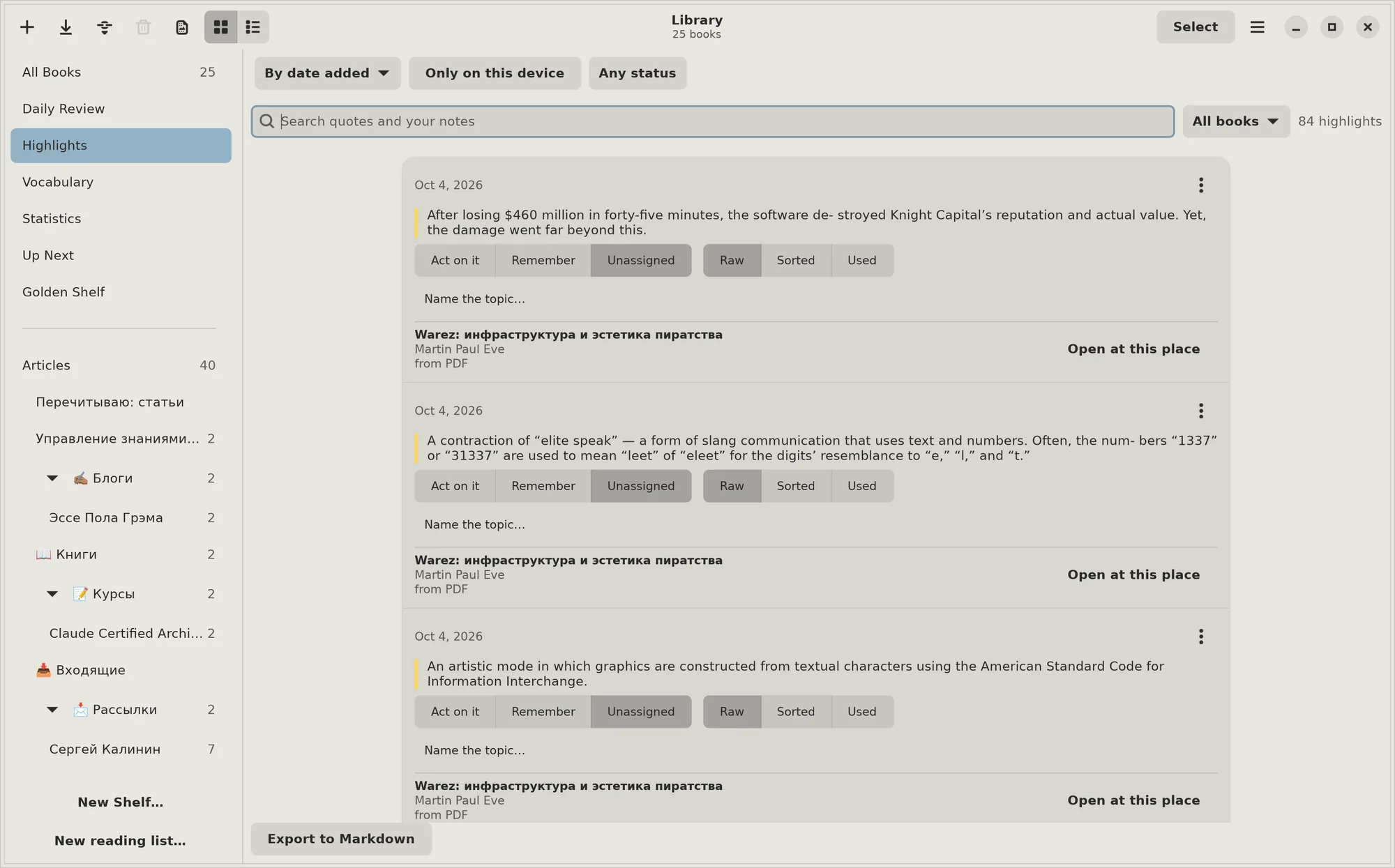
- A shelf as a grid or a list; search by title, author and the text of your books; nested shelves, lists, tags.
- EPUB, PDF, FB2, MOBI and TXT.
- Importing files, moving over from Calibre and Zotero, highlights from Kindle and Readwise.
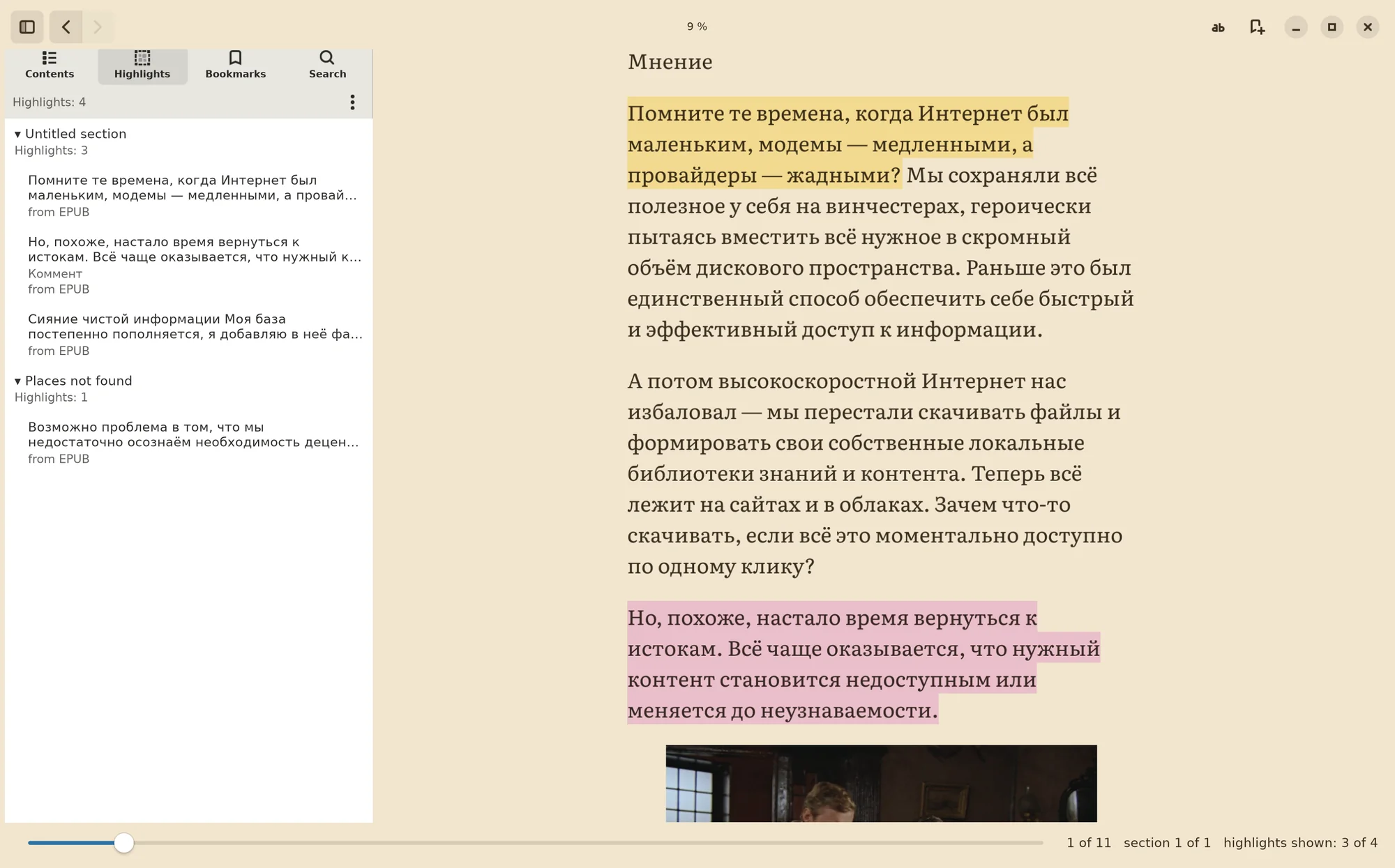
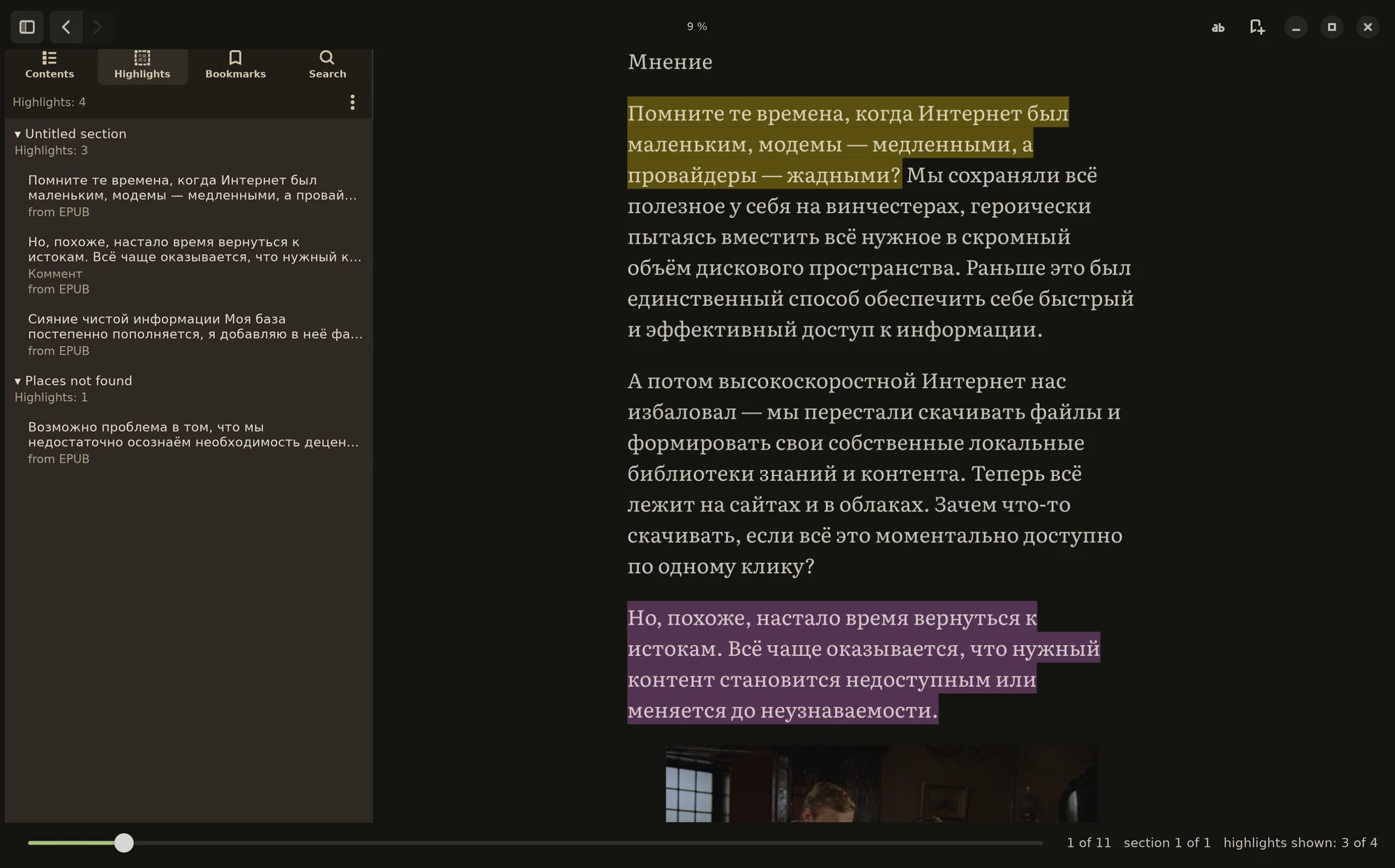
- A reader with a table of contents, search in the book, footnotes, bookmarks, typesetting — typeface, size, margins, columns — and page schemes.
- Highlights with a colour and your own thought, a highlights feed, a daily review, Anki cards, and “Read aloud” with the system's voice.
- Sync with your other Beresta devices through a shared folder, S3 or B2 storage, or WebDAV. Network storage is encrypted with your passphrase.
- Export to Obsidian — on its own, after each highlight and when you close a book.
- OPDS catalogues: take books from other catalogues and share your own library on your home network.
- Articles from the browser, with the Beresta extension for Chrome or Firefox.
- The MCP server for AI assistants comes in the package.
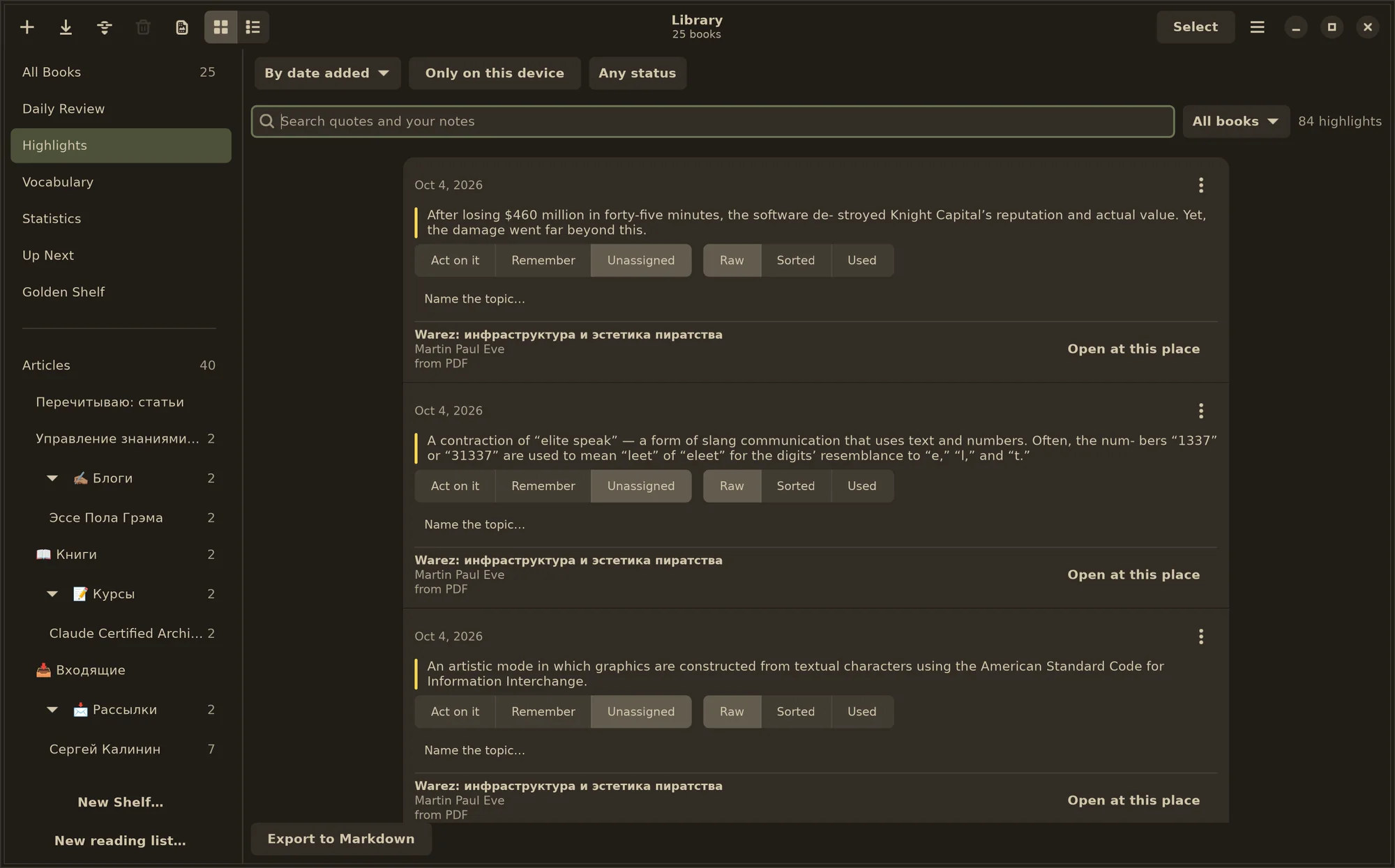
- Themes with light and dark variants; seven interface languages.
How to install
There are two packages with the same app inside. You need a 64-bit Intel or AMD computer (x86_64).
Flatpak — if you're not sure which to pick
The Flatpak brings everything the window and the reader need, and keeps Beresta in a sandbox on any machine. You need Flatpak itself — Fedora ships with it, on Ubuntu run sudo apt install flatpak — and Flathub added as a source: the GNOME 50 runtime Beresta runs on comes from there.
- Download
Beresta-1.9.1.flatpak.
Download the Flatpak - Add Flathub if you don't have it yet:
flatpak remote-add --user --if-not-exists flathub https://dl.flathub.org/repo/flathub.flatpakrepo - Install Beresta:
flatpak install --user Beresta-1.9.1.flatpak - Start it from your app menu or with
flatpak run page.beresta.Beresta.
You pick books in the usual file chooser, so Beresta doesn't need access to your whole home folder. The Flatpak keeps its library in the app's own folder: ~/.var/app/page.beresta.Beresta/data.
AppImage — one file, nothing to install
The AppImage carries GTK, libadwaita, WebKitGTK and Python inside and installs nothing into the system. I test it on clean Ubuntu 22.04 and 24.04, Debian 12 and Fedora 44.
- Download
Beresta-…-x86_64.AppImage.
Download the AppImage - Make it executable:
chmod +x Beresta-*.AppImage - Run it:
./Beresta-*.AppImage
If the system says FUSE is missing, run it like this:./Beresta-*.AppImage --appimage-extract-and-run
From the machine the AppImage takes only graphics: an X11 or Wayland server, Mesa and an EGL driver. Every desktop has them. If something is missing, Beresta says in plain words which library and what to install.
The sandbox. A book is drawn by a separate WebKit process, and Beresta keeps it in a sandbox, away from your files. In the Flatpak the sandbox works on any machine. In the AppImage it works where the system provides bubblewrap (bwrap) and allows user namespaces. Where it doesn't, Beresta runs without the sandbox and says so in Settings → Diagnostics. If the sandbox fails to start several times in a row, Beresta asks whether to open without it — for this launch only.
Key and purchase
For the first 14 days everything works without a key. After that Beresta still opens, shows and exports everything you have in it, but takes no new books until you paste a key.
One key covers Linux and Windows. “Beresta for Windows and Linux” costs $19.99: a one-time purchase with a year of updates included, for up to three machines on either system. When the year of updates ends, nothing is taken away: Beresta keeps working as it did, and a $9.99 renewal buys another year of new versions.
- Pay on the sales page. The key appears on the page after payment and arrives by email.
- In Beresta, open Settings → Purchase and paste the whole key — spaces and line breaks don't matter.
- The key is checked on the machine, offline. The network is needed once, to register the machine with my server. After that Beresta never asks me again.
- Moving to another computer? Press “Free this machine” in the same place, and the next one takes its place.
The key is kept in your desktop keyring, not in the library database. To register a machine, my server gets the key, an anonymous fingerprint of the machine and its name — so you can tell your machines apart in the list. It never sees your books or your highlights.
What isn't there yet
- This is a beta: Beresta for Linux is not yet on a par with the Mac.
- Beresta isn't on Flathub or in any other store — only here.
- No ARM build, x86_64 only.
- No “Translate” in the highlight menu: Linux has no system translator.
- No cover cropping and no “Keep all books in the cloud”.
- Five of the seven interface languages — German, French, Spanish, Italian and Kazakh — are machine-translated and haven't been checked by native speakers.
- The Mac, iPhone and iPad versions are sold by the App Store: a Linux key doesn't open them.
- There is no Android version: it comes after Linux and Windows. I am naming no dates until I can see them myself.
Found a bug? Tell me
Beta feedback and bug reports go to the Beresta forum. To help me reproduce a bug, tell me your distribution and its version, which package you use — Flatpak or AppImage — and what you were doing. Beresta collects the rest itself: Settings → Diagnostics, buttons Copy and Save….